This feature allows merging multiple PDF files into a single PDF document. It also supports a range of other file formats such as doc, docx, rtf, txt, xls, xlsx, csv, jpg, png, and zip in Advanced mode.
The total combined size of all input file URls must not exceed 2 GB. Requests that exceed this limit will not be processed.
Input
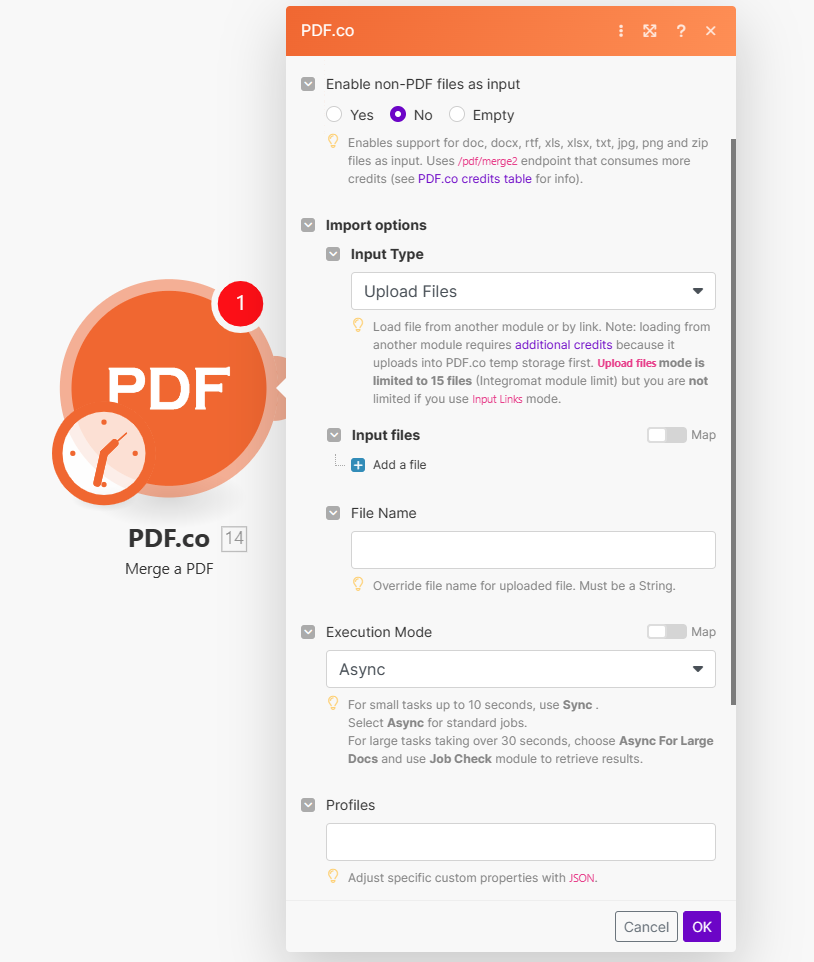
The Make module doesn’t expose every PDF.co API parameter as a field. To pass a parameter that isn’t shown, use the Profiles field with std_params. Enable Advanced Settings to see it (see Profiles). See Standard Parameters for details.
Name
Description
Required
Enable non-PDF files as input
Allows doc, docx, rtf, xls, xlsx, txt, jpg, png, and zip files as input.
No
Import Options
Choose the input source, either Upload Files or Input Links.
Yes
Upload Files
Name
Description
Required
Data
Upload a file using raw binary data from another module. Note: This requires additional credits as it first uploads to PDF.co Temporary Files Storage.
Yes
File Name
Specify a custom file name for the output file.
No
Input Links
Name
Description
Required
Input Link
Enter URLs to source files seperated by comma (e.g., example1.com/file1.pdf,example2.com/file2.pdf), or use a filetoken:// link from PDF.co Built-In Files Storage. For cloud services like Google Drive or Dropbox, ensure the link is publicly accessible.
Yes
File Name
Specify a custom file name for the output file.
No
Name
Description
Required
Execution Mode
Select Sync for small tasks up to 10 seconds. Choose Async for standard jobs, or Async For Large Docs for tasks over 30 seconds. Use Job Check module for retrieving results in large tasks.
No
Profiles
Add custom options for the process in a JSON string format. See API Profiles for more details.
No
Output Links Expiration
Set the expiration time in minutes for output links. Default is 60 minutes. Increase this limit with a Business Plan or higher, see plans here for details.
No
Export Type
Choose between Download a File or JSON Output. Default is Download a File.
No
Integrating External File Sources
Streamline your Make workflows with external file sources like Google Drive and Dropbox using their unique actions. Discover efficient integration strategies in our guide: File Source Integrations in Make.
Merging Files from Google Drive using PDF.co
To overcome issues such as restricted files or temporary blocking by Google Drive, use the Upload a File step in PDF.co before merging:
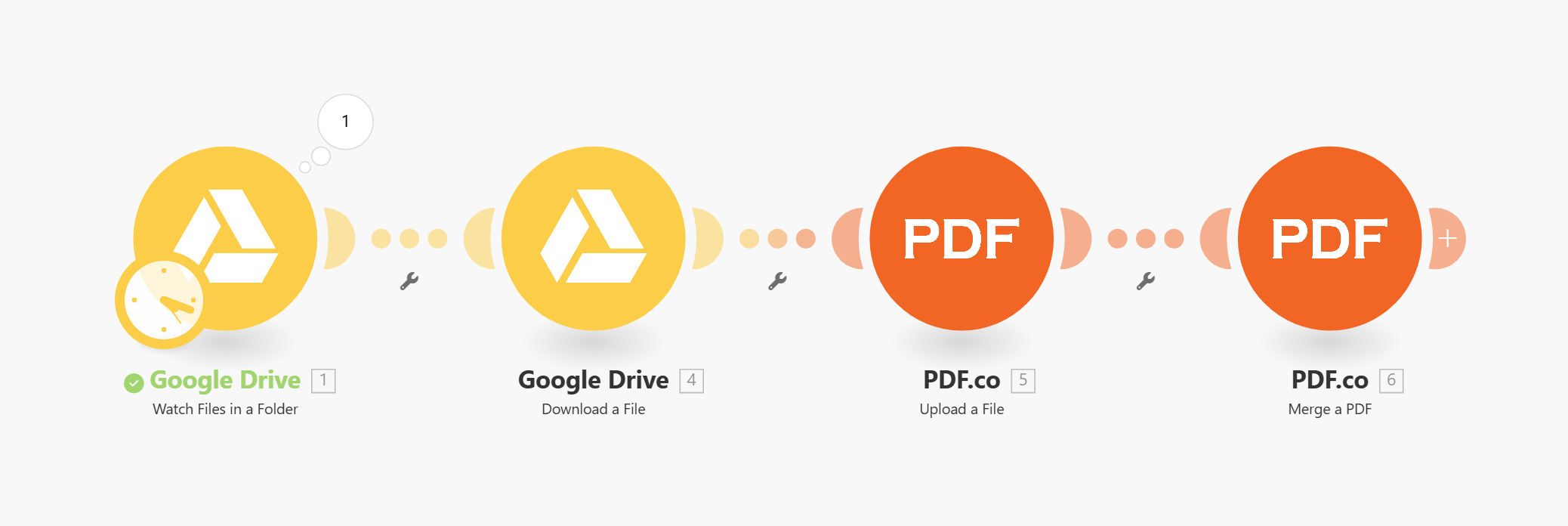
Set up a Google Drive Trigger to Watch Files in a Folder.
Use Google Drive’s Download a File action to fetch file binary data.
Add the Upload a File step in PDF.co to upload the file.
Use the uploaded file URL in the Merge PDF step.
Here’s the complete scenario with all steps:
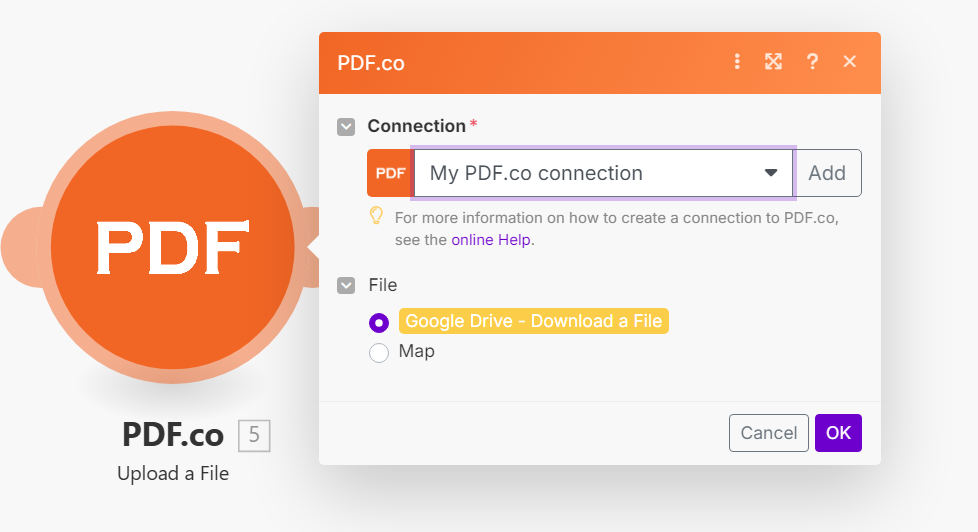
In the Upload a File step, use the file binary data from the Download a File action as shown below:
This approach ensures that the files are accessible and avoids issues related to file restrictions, rate limiting or temporary blocking by Google Drive.
Output
Name
Description
url
This is the temporary URL provided by the PDF.co file server.
Data
Represents the output binary data. This data is generated only when the Export Type option is set to Download a File.
Status
Indicates the response status code. A success status is returned if the operation is successful.
Page Count
The total number of pages in the output PDF.
outputLinkValidTill
Specifies the timestamp until which the url remains accessible.
error
Provides details about any errors encountered during the process, if applicable.
name
The designated name of the output file.
Job Id
A unique identifier assigned to the job.
credits
The amount of credits utilized for the process.
Remaining Credits
Displays the balance of credits available in your account.
duration
The duration of time the process took to complete.
Profiles
To display the Profiles fields, you must enable Advanced Settings by clicking the toggle:
You can set additional options for the operation used in the PDF.co module by using Profiles. A profile is a string in JSON-like format containing predefined parameters.
Here’s an example of a Custom Profiles input:
{ "outputDataFormat": "base64" }
With this input, the PDF.co module will return the output in base64 format. You can find the list of available parameters for customizing profiles in the PDF.co operation documentation below:
You can use any regular API parameter from the API Reference within Make using the std_params feature in profiles. The std_params enables the definition of regular API parameters in a JSON format, See Standard Parameters for detailed documentation and examples.
Parameter
Type
Default
Description
outputDataFormat
string
-
If you require your output as base64 format, set this to base64
RenameMatchingFieldsDuringMerge
boolean
true
This feature enables the renaming of field names during the merging of PDF files which contain forms. If set to false, it will retain the original field names. This is helpful for merged PDF forms with identical field names when the customer wants to auto-fill the identical field names in other pages.
GenerateBookmarks
boolean
false
This adds bookmarks to the merged document with names assigned to every merged document in the same order:
BookmarkTitles
array[string]
-
An array containing the titles/names for bookmarks to be created
zipIncludeFilter
string
-
You can control which files to include and exclude from input zip files with a profiles.
zipExcludeFilter
string
-
zipIncludeFilter and zipExcludeFilter support * and ? wildcards.
MergedDocumentTitle
string
Title of the first document
You can change the document title during a merge with the following:
DataEncryptionAlgorithm
string
-
Controls the encryption algorithm used for data encryption. See User-Controlled Encryption for more information. The available algorithms are: AES128, AES192, AES256.
DataEncryptionKey
string
-
Controls the encryption key used for data encryption. See User-Controlled Encryption for more information.
DataEncryptionIV
string
-
Controls the encryption IV used for data encryption. See User-Controlled Encryption for more information.
DataDecryptionAlgorithm
string
-
Controls the decryption algorithm used for data decryption. See User-Controlled Encryption for more information. The available algorithms are: AES128, AES192, AES256.
DataDecryptionKey
string
-
Controls the decryption key used for data decryption. See User-Controlled Encryption for more information.
DataDecryptionIV
string
-
Controls the decryption IV used for data decryption. See User-Controlled Encryption for more information.
Was this page helpful?
Assistant
Responses are generated using AI and may contain mistakes.