> ## Documentation Index
> Fetch the complete documentation index at: https://developer.pdf.co/llms.txt
> Use this file to discover all available pages before exploring further.
# Add Barcode
> Enhance your Zapier workflow by integrating this step to generate a barcode and add it to an existing PDF document. You can also generate blank PDF files containing barcodes.
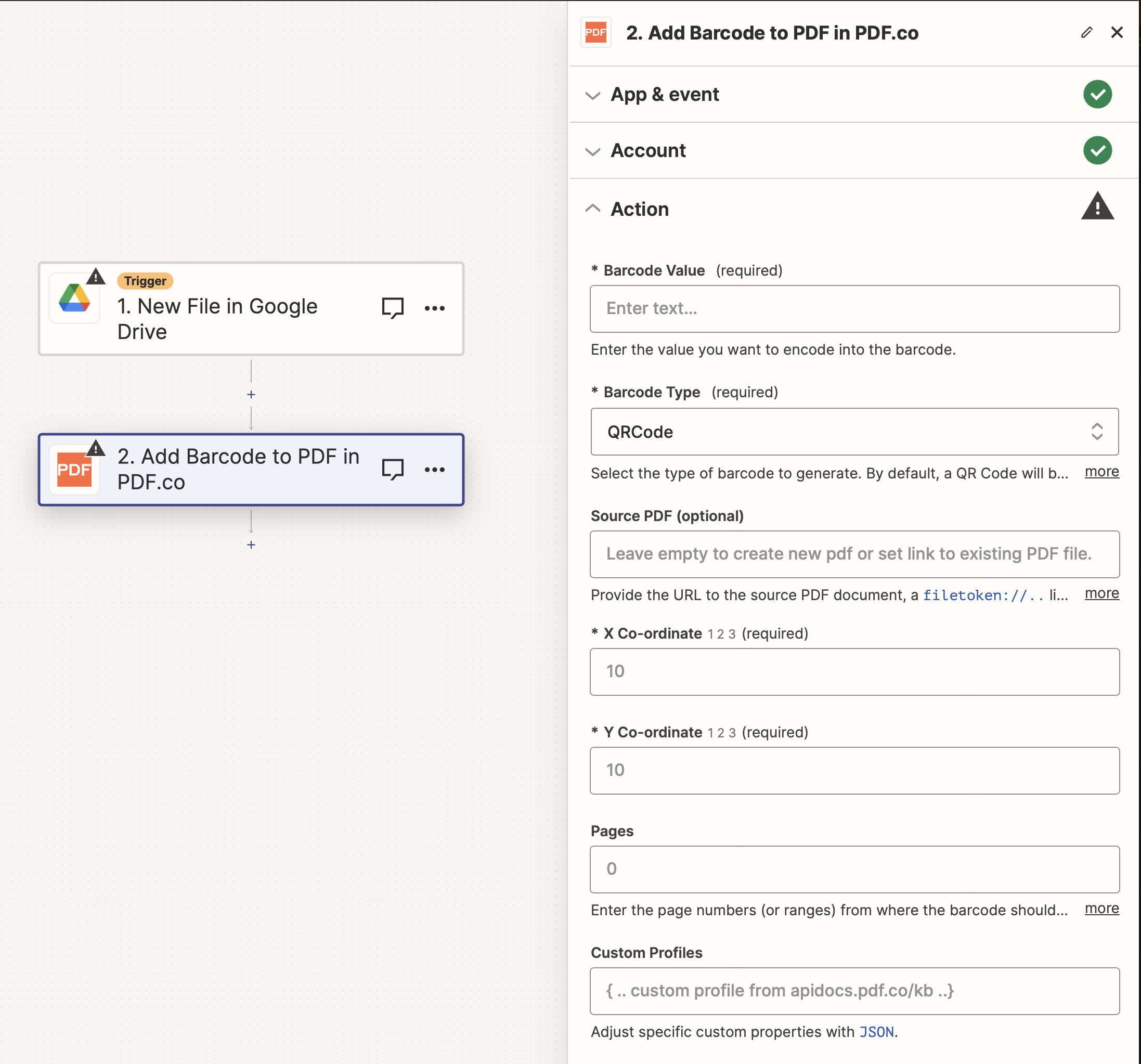 ## Input
The Zapier action doesn't expose every PDF.co API parameter as a field. To pass a parameter that isn't shown, use the **Custom Profiles** field with `std_params`. See [Standard Parameters](/api/profiles#standard-parameters).
| Name | Description | Required |
| - | - | - |
| **Barcode Value** | Specify the value you wish to encode into the barcode. | Yes |
| **Barcode Type** | Select the [type of barcode](/api/barcode-reader) to generate. Defaults to a QR Code. | Yes |
| **Source PDF URL** | Provide the URL to the source PDF document, or a `filetoken://` link from [PDF.co Built-In Files Storage](https://app.pdf.co/files). If you use another cloud service such as **Google Drive** or **Dropbox** ensure the link is publicly accessible. Leave this field empty to generate blank PDF files containing barcodes. | No |
| **X Co-ordinate** | Specify the X coordinate. Use the `PDF.co tool` to determine the `X` and `Y` coordinates on your PDF file. | Yes |
| **Y Co-ordinate** | Specify the Y coordinate. The [PDF.co tool](https://app.pdf.co/pdf-edit-add-helper) can assist in finding the `X` and `Y` coordinates. | Yes |
| **Pages** | Indicate the pages where the barcode should be added using page numbers or ranges. Leave blank to include all pages. The first page is numbered `0`. Example: `0,2-5,7-`. | Yes |
| **Custom Profiles** | A `JSON` string which adds options for the conversion process. See [Custom Profiles](#custom-profiles) for more. | No |
### Source PDF URL & Google
When using **Google Drive**, it’s typically recommended to choose the **File** option. For more advanced file integration techniques, see [Integrating File Sources with pdf.co](/integrations/zapier/input-file-sources).
## Input
The Zapier action doesn't expose every PDF.co API parameter as a field. To pass a parameter that isn't shown, use the **Custom Profiles** field with `std_params`. See [Standard Parameters](/api/profiles#standard-parameters).
| Name | Description | Required |
| - | - | - |
| **Barcode Value** | Specify the value you wish to encode into the barcode. | Yes |
| **Barcode Type** | Select the [type of barcode](/api/barcode-reader) to generate. Defaults to a QR Code. | Yes |
| **Source PDF URL** | Provide the URL to the source PDF document, or a `filetoken://` link from [PDF.co Built-In Files Storage](https://app.pdf.co/files). If you use another cloud service such as **Google Drive** or **Dropbox** ensure the link is publicly accessible. Leave this field empty to generate blank PDF files containing barcodes. | No |
| **X Co-ordinate** | Specify the X coordinate. Use the `PDF.co tool` to determine the `X` and `Y` coordinates on your PDF file. | Yes |
| **Y Co-ordinate** | Specify the Y coordinate. The [PDF.co tool](https://app.pdf.co/pdf-edit-add-helper) can assist in finding the `X` and `Y` coordinates. | Yes |
| **Pages** | Indicate the pages where the barcode should be added using page numbers or ranges. Leave blank to include all pages. The first page is numbered `0`. Example: `0,2-5,7-`. | Yes |
| **Custom Profiles** | A `JSON` string which adds options for the conversion process. See [Custom Profiles](#custom-profiles) for more. | No |
### Source PDF URL & Google
When using **Google Drive**, it’s typically recommended to choose the **File** option. For more advanced file integration techniques, see [Integrating File Sources with pdf.co](/integrations/zapier/input-file-sources).
 ## Output
| Name | Description |
| - | - |
| `url` | The temporary **URL** on the **PDF.co** file server. |
| `outputLinkValidTill` | A timestamp which indicates how long the `url` will be available for. |
| `error` | Details of any errors (if any). |
| `status` | The [response status](/api/introduction) code. If all good this will be `200`. |
| `name` | The name of the file. |
| `jobId` | The unique identifier for the job. |
| `credits` | The credits spent on the process. |
| `remainingCredits` | The credits left on your account. |
| `duration` | The time it took for the process. |
## Custom profiles
Use Custom [Profiles](/api/profiles) to enhance your workflow with additional processing options. Enter `JSON` configuration to customize OCR settings, output format, text extraction methods, and more.
## Output
| Name | Description |
| - | - |
| `url` | The temporary **URL** on the **PDF.co** file server. |
| `outputLinkValidTill` | A timestamp which indicates how long the `url` will be available for. |
| `error` | Details of any errors (if any). |
| `status` | The [response status](/api/introduction) code. If all good this will be `200`. |
| `name` | The name of the file. |
| `jobId` | The unique identifier for the job. |
| `credits` | The credits spent on the process. |
| `remainingCredits` | The credits left on your account. |
| `duration` | The time it took for the process. |
## Custom profiles
Use Custom [Profiles](/api/profiles) to enhance your workflow with additional processing options. Enter `JSON` configuration to customize OCR settings, output format, text extraction methods, and more.
 ### Sample JSON
```json theme={null}
{"OCRResolution": 600, "TrimSpaces": true, "OCRMode": "TextFromImagesAndFonts"}
```
You can use any regular API parameter from the [API Reference](/api) within Zapier using the `std_params` feature in profiles. The `std_params` enables the definition of regular API parameters in a JSON format, See [Standard Parameters](/api/profiles#standard-parameters) for detailed documentation and examples.
| Parameter | Type | Default | Description |
| - | - | - | - |
| `outputDataFormat` | string | - | If you require your output as base64 format, set this to base64 |
| `Pages[0].SetCropBox()` | array\[string] | - | Crop a PDF file using an array to define the crop area. The crop box is defined by a rectangle \[`x`, `y`, `width`, `height`] in PDF points (1 Point = 1/72 inches). |
| `DisableLigatures` | boolean | `false` | To disable ligaturization, for example for Hebrew, use the following: |
| `FlattenDocument()` | boolean | `false` | Flattening a document renders it as read-only. Handy if you want to remove editing or copying capability. |
| `DataEncryptionAlgorithm` | string | - | Controls the encryption algorithm used for data encryption. See User-Controlled Encryption for more information. The available algorithms are: `AES128`, `AES192`, `AES256`. |
| `DataEncryptionKey` | string | - | Controls the encryption key used for data encryption. See User-Controlled Encryption for more information. |
| `DataEncryptionIV` | string | - | Controls the encryption IV used for data encryption. See User-Controlled Encryption for more information. |
| `DataDecryptionAlgorithm` | string | - | Controls the decryption algorithm used for data decryption. See User-Controlled Encryption for more information. The available algorithms are: `AES128`, `AES192`, `AES256`. |
| `DataDecryptionKey` | string | - | Controls the decryption key used for data decryption. See User-Controlled Encryption for more information. |
| `DataDecryptionIV` | string | - | Controls the decryption IV used for data decryption. See User-Controlled Encryption for more information. |
This documentation is built and hosted on [Mintlify](https://mintlify.com), a developer documentation platform.
### Sample JSON
```json theme={null}
{"OCRResolution": 600, "TrimSpaces": true, "OCRMode": "TextFromImagesAndFonts"}
```
You can use any regular API parameter from the [API Reference](/api) within Zapier using the `std_params` feature in profiles. The `std_params` enables the definition of regular API parameters in a JSON format, See [Standard Parameters](/api/profiles#standard-parameters) for detailed documentation and examples.
| Parameter | Type | Default | Description |
| - | - | - | - |
| `outputDataFormat` | string | - | If you require your output as base64 format, set this to base64 |
| `Pages[0].SetCropBox()` | array\[string] | - | Crop a PDF file using an array to define the crop area. The crop box is defined by a rectangle \[`x`, `y`, `width`, `height`] in PDF points (1 Point = 1/72 inches). |
| `DisableLigatures` | boolean | `false` | To disable ligaturization, for example for Hebrew, use the following: |
| `FlattenDocument()` | boolean | `false` | Flattening a document renders it as read-only. Handy if you want to remove editing or copying capability. |
| `DataEncryptionAlgorithm` | string | - | Controls the encryption algorithm used for data encryption. See User-Controlled Encryption for more information. The available algorithms are: `AES128`, `AES192`, `AES256`. |
| `DataEncryptionKey` | string | - | Controls the encryption key used for data encryption. See User-Controlled Encryption for more information. |
| `DataEncryptionIV` | string | - | Controls the encryption IV used for data encryption. See User-Controlled Encryption for more information. |
| `DataDecryptionAlgorithm` | string | - | Controls the decryption algorithm used for data decryption. See User-Controlled Encryption for more information. The available algorithms are: `AES128`, `AES192`, `AES256`. |
| `DataDecryptionKey` | string | - | Controls the decryption key used for data decryption. See User-Controlled Encryption for more information. |
| `DataDecryptionIV` | string | - | Controls the decryption IV used for data decryption. See User-Controlled Encryption for more information. |
This documentation is built and hosted on [Mintlify](https://mintlify.com), a developer documentation platform.